
Jump to content
View in the app

A better way to browse. Learn more.

Surly Horns

A full-screen app on your home screen with push notifications, badges and more.

To install this app on iOS and iPadOS
  1. Tap the Share icon in Safari
  2. Scroll the menu and tap Add to Home Screen.
  3. Tap Add in the top-right corner.
To install this app on Android
  1. Tap the 3-dot menu (⋮) in the top-right corner of the browser.
  2. Tap Add to Home screen or Install app.
  3. Confirm by tapping Install.
Football ... Basketball ... Baseball ... Other Sports ... Futbol ... 🤫995🤫 ... Gambling ... Movies & TV ... Music ... Hobbies ... Lulz ... Food & Travel ... Daily Texan ... Business & Markets ... Cloak Room ... Help ... For Sale ... Board Discussion ... Advertise... Tailgate Donations

Site Upgraded. You MUST LOG IN WITH YOUR EMAIL ADDRESS - IF YOU DO NOT KNOW YOUR EMAIL ADDRESS CLICK HERE

immamac

12/26/25

Settings - Surly Horns

Go here - Your email should be listed under your display name. You do not need access to the email address to be able to log in you just have to know it. Display Name log in has been disabled. 
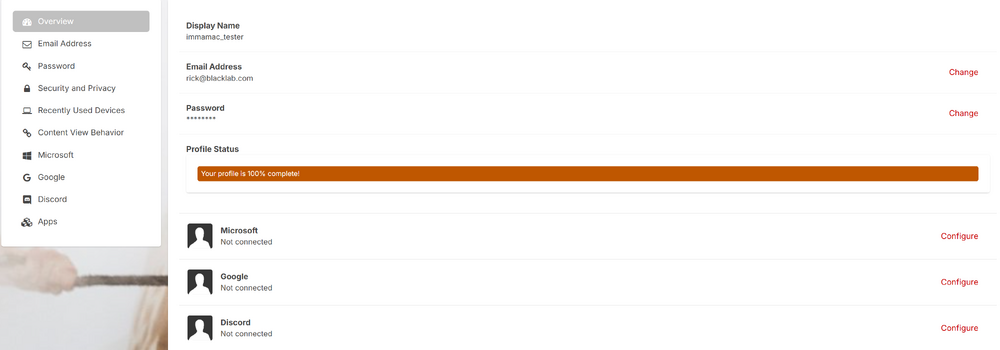
image.png

If you have any issues logging in after the upgrade - I will be available via our Contact Us to help you. I know that it's annoying, but you can also use your google, microsoft logins and be unaffected. 

I do not care if you use a burner email the point of this isn't to force you to put valid email addresses in, the point of this is to obscure your login information from your display name which is a security risk that has been patched in this version of the software.

You will not be logged out in the transition, you will remain logged in - so this will only impact people who log out every time when they leave the site or browse incognito. 


Football ... Basketball ... Baseball ... Other Sports ... Futbol ... 🤫995🤫 ... Gambling ... Movies & TV ... Music ... Hobbies ... Lulz ... Food & Travel ... Daily Texan ... Business & Markets ... Cloak Room ... Help ... For Sale ... Board Discussion ... Advertise... Tailgate Donations

Configure browser push notifications

Chrome (Android)
  1. Tap the lock icon next to the address bar.
  2. Tap Permissions → Notifications.
  3. Adjust your preference.
Chrome (Desktop)
  1. Click the padlock icon in the address bar.
  2. Select Site settings.
  3. Find Notifications and adjust your preference.